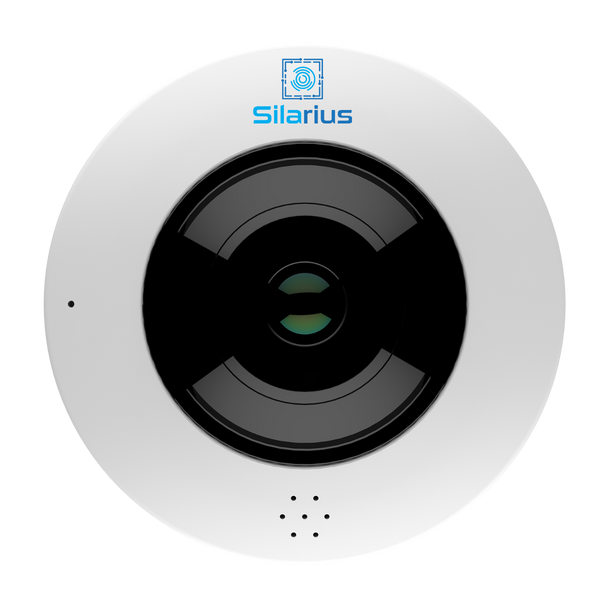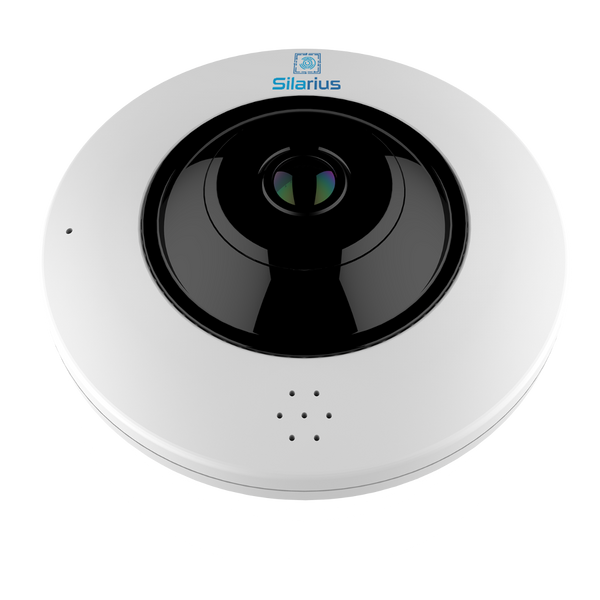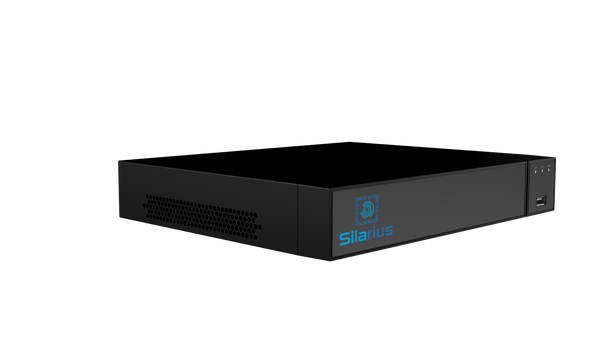
How to Connect Any IP Camera to Cloud Surveillance
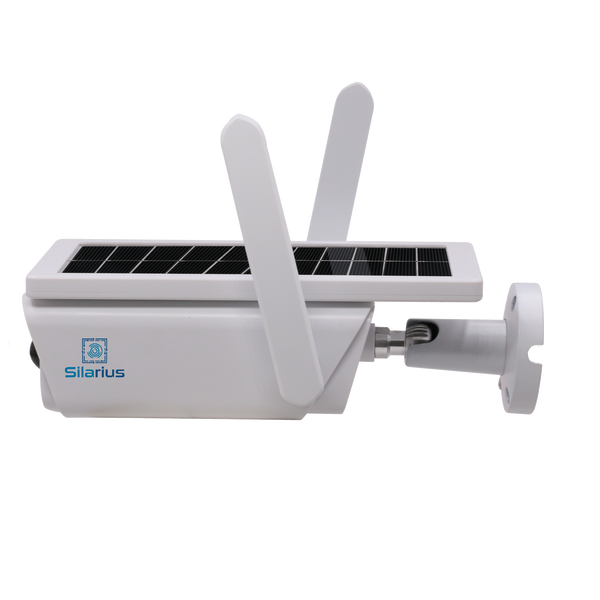
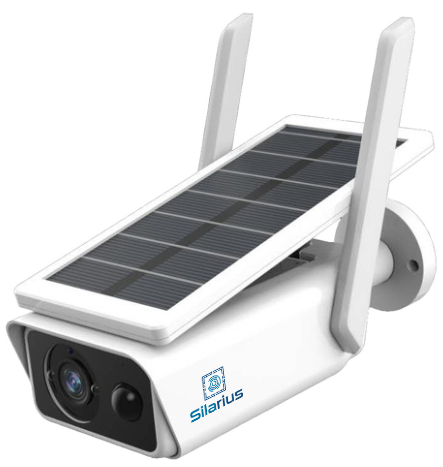
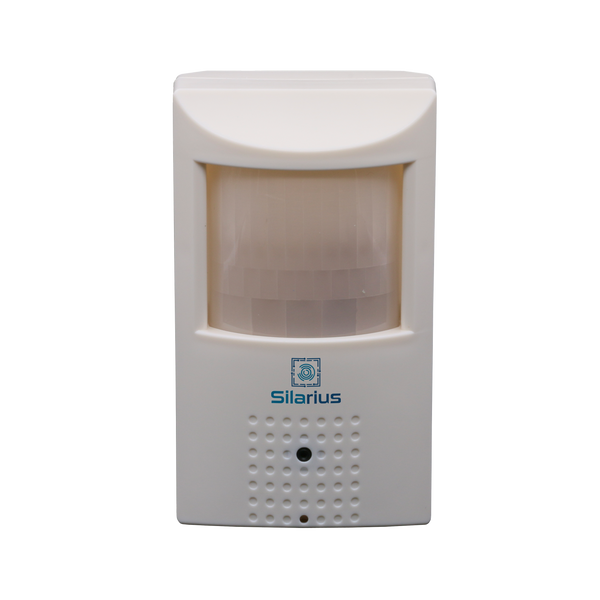
One of the biggest misconceptions about cloud video surveillance is that you need to buy new cameras to get started. The truth: Silarius Cloud works with virtually any IP camera, NVR, or even analog camera system you already own. Here's exactly how to connect your existing cameras to the cloud.
What You Need Before You Start
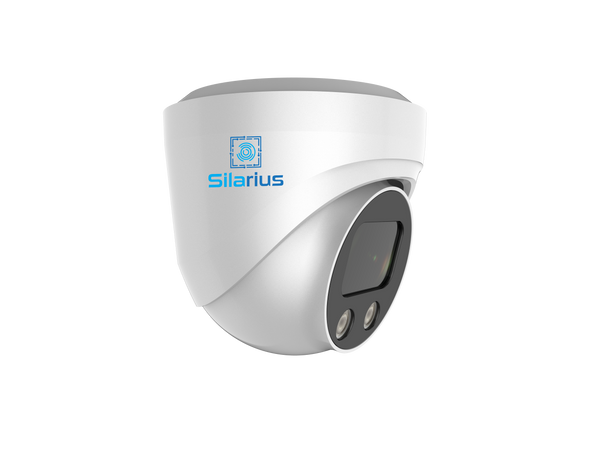
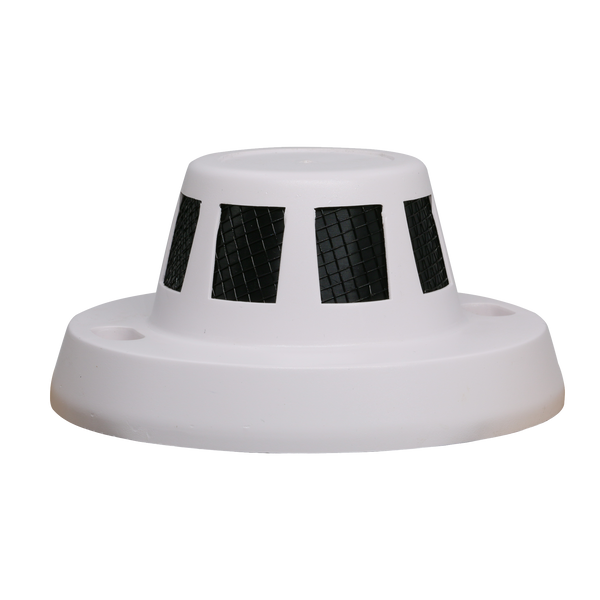
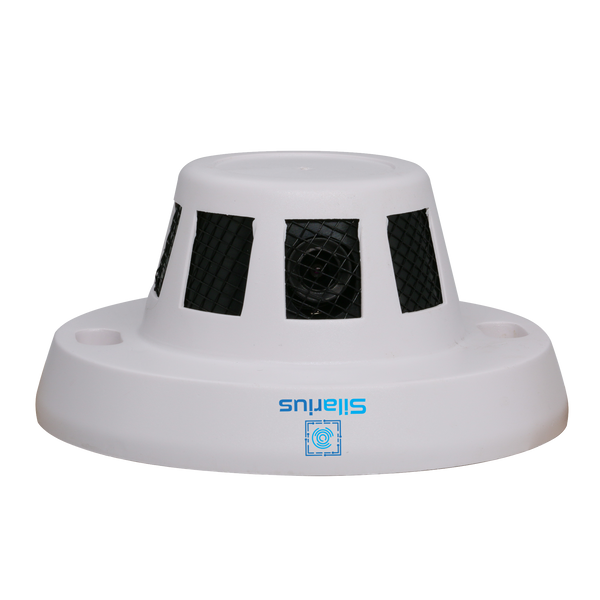
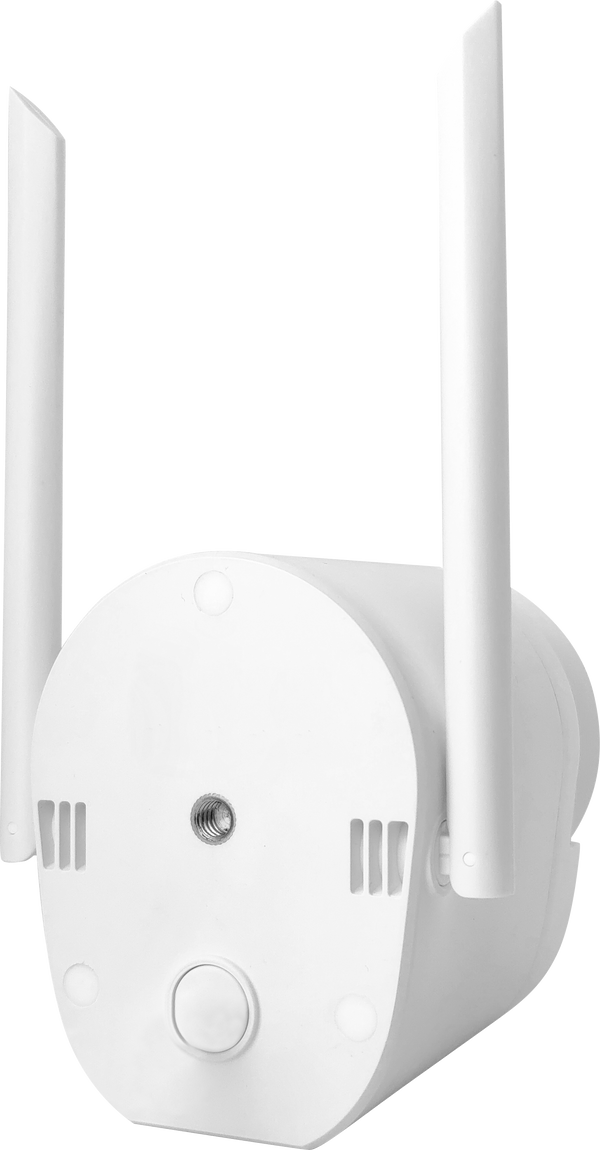
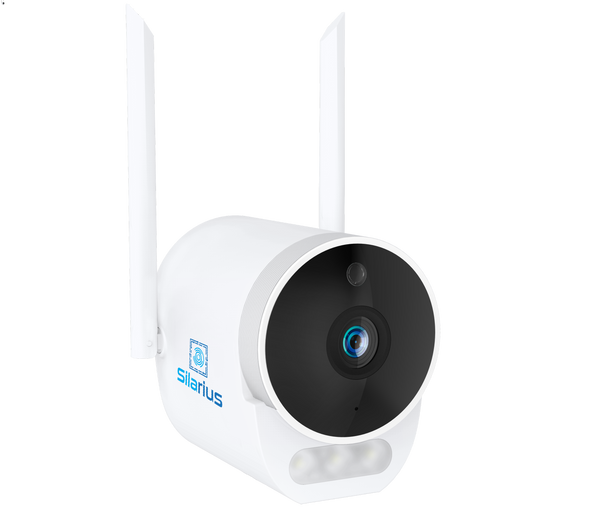
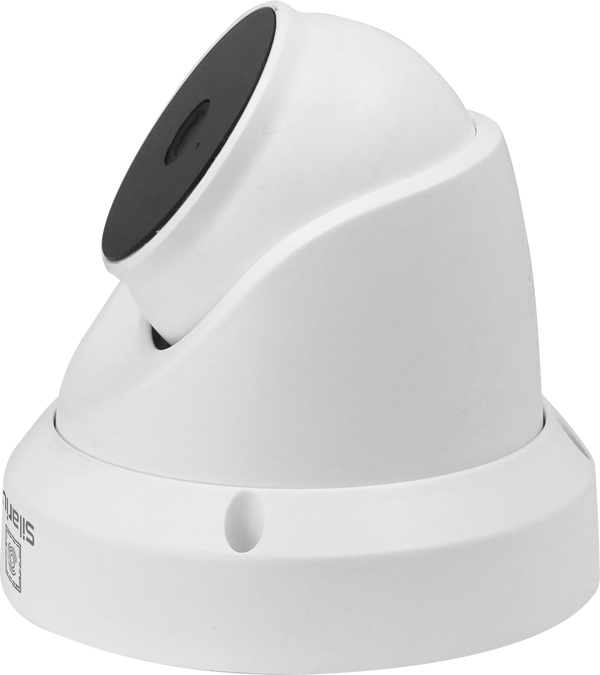
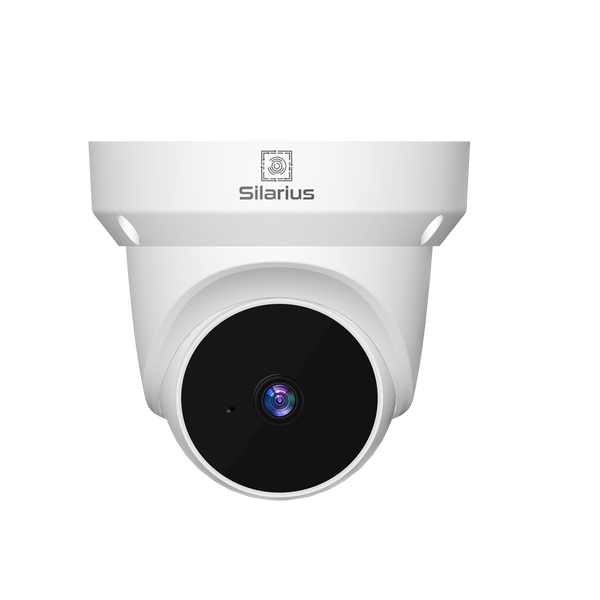
To connect an IP camera to cloud surveillance you need three things: the camera itself (any ONVIF-compatible IP camera will work), a stable internet connection at the camera's location, and a Silarius Cloud account. That's it — no additional hardware, no specialized installers, no ripping out your existing cabling.
Step 1: Check Camera Compatibility
Most modern IP cameras from brands like Hikvision, Dahua, Axis, Bosch, and hundreds of others support the ONVIF protocol — the universal standard that lets cameras communicate with cloud platforms. Check your camera's manual or settings menu for ONVIF support. If your camera was manufactured after 2012, there's an excellent chance it's compatible.
For older analog cameras, an ONVIF-compatible encoder or NVR acts as a bridge, converting the analog signal to IP and enabling cloud connectivity. Silarius Cloud supports this configuration.
Step 2: Create Your Silarius Cloud Account
Sign up at silarius.com/pages/silarius-cloud-video-service. Plans include a free trial period so you can test everything before committing. Once your account is created, you'll have access to the Silarius Cloud dashboard.
Step 3: Add Your Camera in the Dashboard
In the Silarius Cloud dashboard, click "Add Camera" and choose your connection method. For direct IP cameras, you'll enter the camera's local IP address, ONVIF port (usually 80 or 8080), and your camera's login credentials. The system will auto-discover the camera's stream profiles and connect within seconds.
Step 4: Configure Recording and Retention
Once connected, set your recording schedule (24/7 continuous, motion-triggered, or scheduled windows), your cloud retention period (7 days, 30 days, 90 days, or longer), and your alert preferences. AI-powered alerts for motion, faces, license plates, and intrusion detection are included in all plans.
Step 5: Access from Anywhere
Your camera is now live in the cloud. Log in from any browser or mobile device to view live feeds, review recorded footage, export clips, and manage alerts. No VPN, no port forwarding, no IT department needed.
Connecting an Existing NVR System
If you have an existing NVR managing multiple cameras, Silarius Cloud can connect directly to the NVR rather than each individual camera. Enter the NVR's ONVIF credentials and all channels will appear in your cloud dashboard simultaneously. This is the fastest way to move a multi-camera system to the cloud in one step.
Troubleshooting Common Connection Issues
The most common issue is firewall or router blocking outbound traffic from the camera. Ensure your camera can reach the internet on port 443 (HTTPS). If the camera sits on a VLAN, verify routing allows internet egress. Silarius Cloud uses outbound-only connections, so you never need to open inbound ports or configure port forwarding.
Questions about your specific camera model? Contact the Silarius Cloud team — our engineers have connected thousands of camera models and can confirm compatibility before you sign up.